> ## Documentation Index
> Fetch the complete documentation index at: https://docs.activeviam.com/llms.txt
> Use this file to discover all available pages before exploring further.
# Dashboards
> What dashboards are in Atoti UI, covering how to create, rename, save, and navigate multi-page dashboards, use present mode, undo and redo changes, manage pages with unique layouts, filters, and widgets, copy pages from one dashboard to another, and group pages.
Dashboards are interactive reports that enable users to create a visual representation of their data. A user can monitor and explore their data by building dashboards containing [widgets](https://docs.activeviam.com/data-visualization/atoti-ui/5.2/user-guide/create-a-dashboard/widgets/about-widgets.md) such as pivot tables or charts. Each dashboard may contain one or more [pages](#dashboard-pages), and each page may display one or more widgets.
Dashboards can be [exported to PDF](https://docs.activeviam.com/data-visualization/atoti-ui/5.2/user-guide/exports/export-to-csv-or-pdf.md#export-to-pdf) or [shared](https://docs.activeviam.com/data-visualization/atoti-ui/5.2/user-guide/create-a-dashboard/share-content.md#share-a-dashboard) with others in your organization.
## Create a dashboard
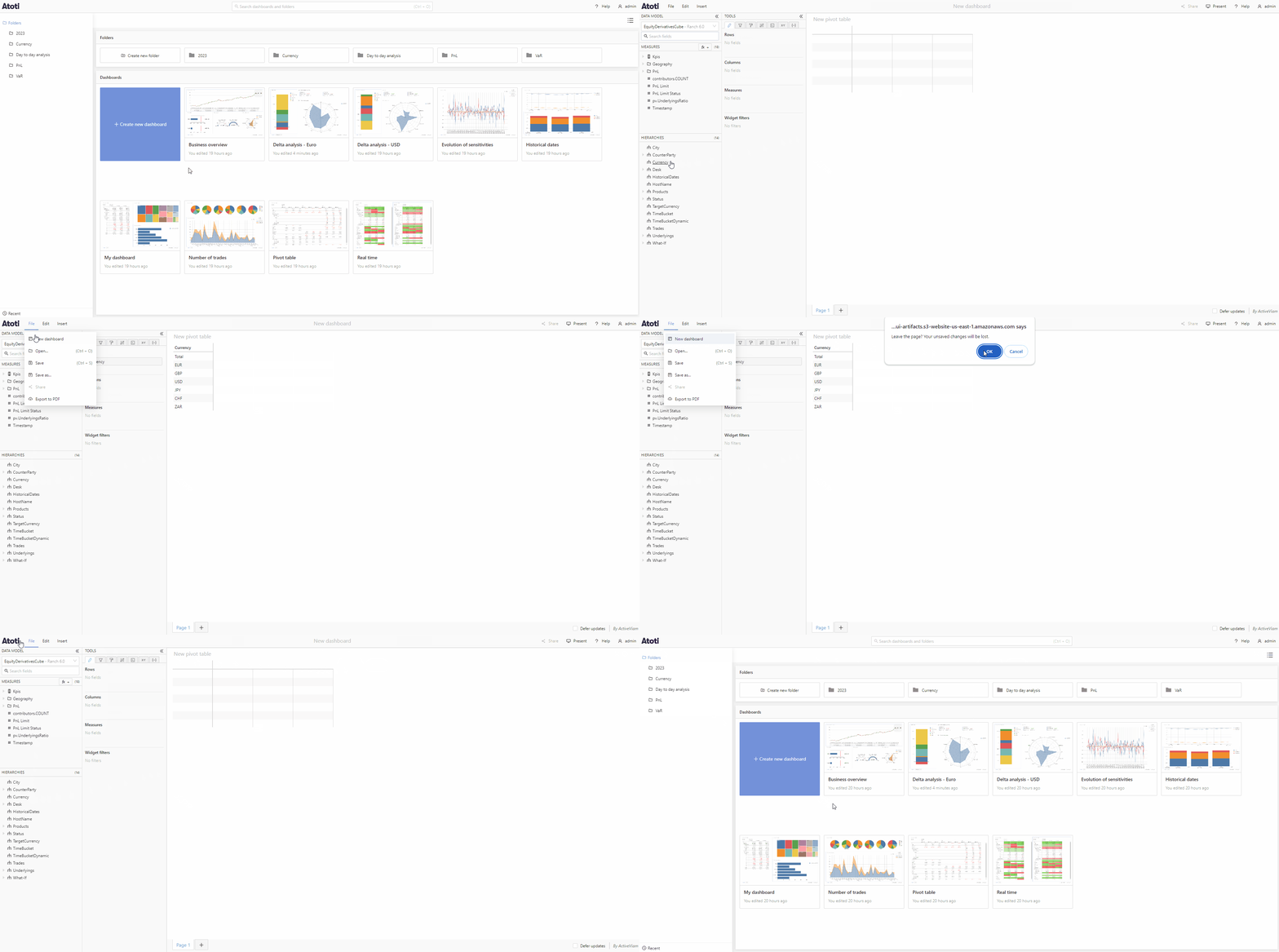
* To create a new dashboard from the home page, click the **Create new dashboard** button.
* To create a new dashboard from a dashboard page, select **New dashboard** from the **File** menu.
> [!NOTE]
>
> Users who do not have the
> [permission](https://docs.activeviam.com/data-visualization/atoti-ui/5.2/developer-guide/customize-atoti-ui/permissions.md) to manage
> content can create a new dashboard by using the **Start exploring** button in
> the home page.
## Dashboard pages
**Pages** enable you to expand your workspace within a single dashboard, organize your data and quickly switch between different views. Each page can have unique [filters](https://docs.activeviam.com/data-visualization/atoti-ui/5.2/user-guide/create-a-dashboard/filters/about-filters.md) and a custom layout, displaying one or several widgets.
Pages can be managed using the pages bar at the bottom of the dashboard.
| Action | Instructions |
| - | - |
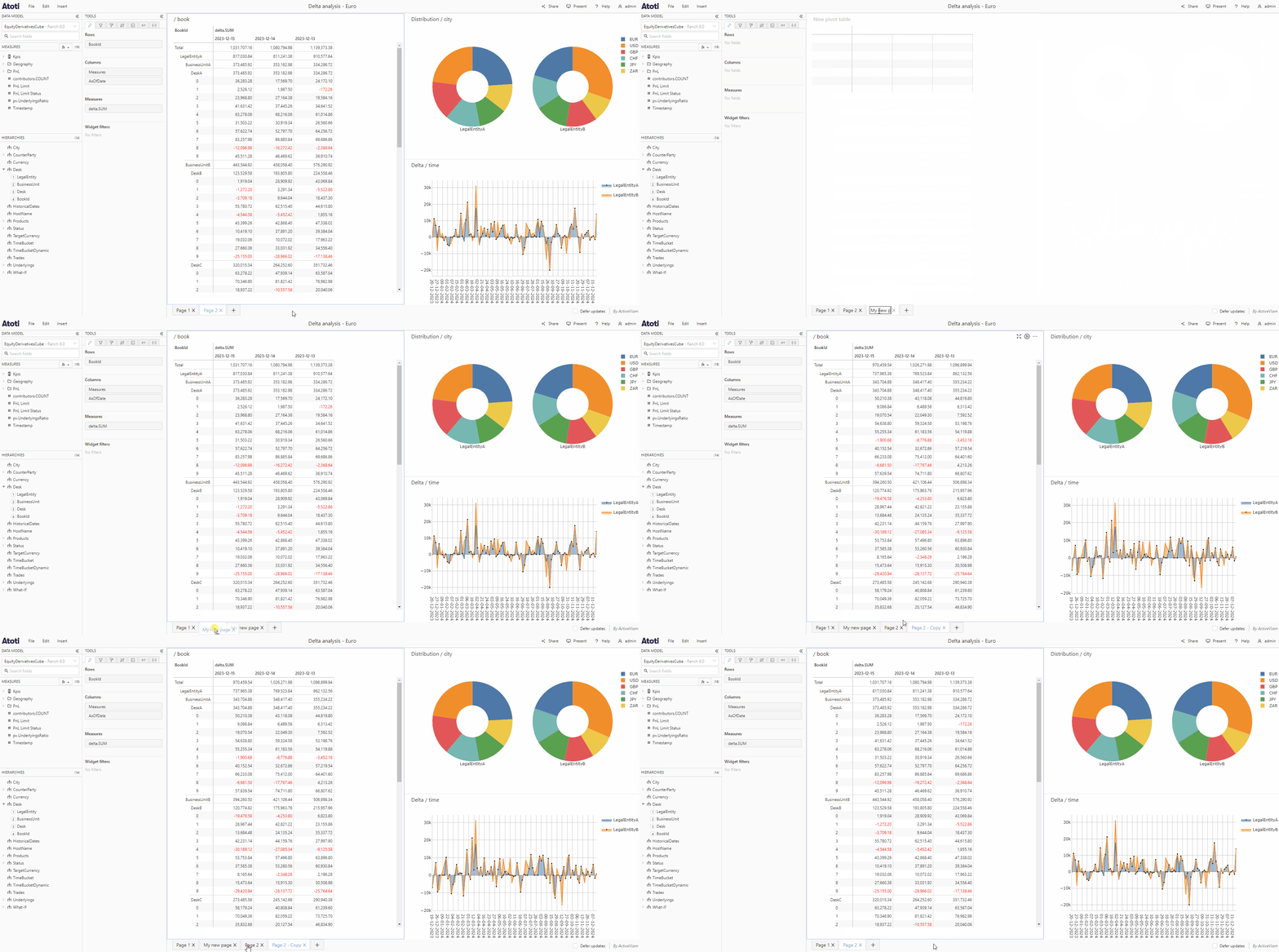
| Add a page | Click the **+** icon at the right of the pages bar, or right-click the empty area of the pages bar and select **New page**. |
| Switch page | Click on the page tab you want to view. |
| Delete a page | Right click on the page's tab, then select **Delete**. |
| Rename a page | Double click the page tab, or focus it and press Ctrl/Cmd + Enter, it will change to a text input. Type the new name and press enter. |
| Duplicate a page | Right-click on the page's tab, then select **Duplicate**. |
| Copy a page | Right-click on the page's tab, then select **Copy**. The page is copied to the clipboard. |
| Paste a page | Right-click on a page's tab, then select **Paste**. The copied page is inserted to the right of that tab. |
| Reorder pages | Click and hold a page tab, then drag it left or right and drop it in the new location. |
> [!NOTE]
>
> **Switching pages**
>
> For better performance, dashboard pages are only loaded the first time you visit them, so there may be some initial delay when selecting another page for the first time. Once a page has been loaded, it will remain loaded even after you navigate to another page, so switching back to a previously active page will be fast.
> [!NOTE]
>
> **Copying pages between dashboards**
>
> A copied page can be pasted into a different dashboard, another browser tab, or another Atoti UI deployment. Right-clicking the empty area of the pages bar and selecting **Paste** adds the copied page at the end. In all cases, the pasted page becomes the active page. Pages copied from a different Atoti UI version are pasted as they are, without migration.
>
> The clipboard is only available when the application is served over HTTPS: elsewhere, the **Copy** and **Paste** menu items are disabled. The browser may also ask for permission before the clipboard can be read. Pasting will only work if the permission is granted and the clipboard contains an Atoti UI page.
### Group pages
**Groups** organize the pages of a dashboard. A group gathers consecutive pages behind a tag in the pages bar, which shows the group's name and color.
| Action | Instructions |
| - | - |
| Create a group | Right-click on a page's tab, then select **Add to new group**. Type the group's name and press Enter. |
| Group several pages | Select page tabs with Ctrl/Cmd + click, or a range of them with Shift + click. Right-click on one of them, then select **Group *n* pages**. |
| Collapse or expand a group | Click on the group's tag. A collapsed group hides its page tabs, and its tag shows how many pages it holds. |
| Rename a group | Right-click on the group's tag, then select **Rename group**, or focus the tag and press Ctrl/Cmd + Enter. Type the new name and press Enter. |
| Change a group's color | Right-click on the group's tag, then select **Change color** and pick a color. |
| Add a page to a group | Click and hold the page tab, then drag it next to one of the group's tabs, or onto the right half of the group's tag, and drop it there. |
| Take a page out of a group | Click and hold the page tab, then drag it outside of the group and drop it there. |
| Move a group | Click and hold the group's tag, then drag it left or right and drop it in the new location. The group's pages move with it. |
| Copy a group | Right-click on the group's tag, then select **Copy**. Pasting it with **Paste** inserts a new group with the same name, color and pages. The new group goes right after the right-clicked tab, or after that tab's group if it has one. |
| Paste into a group | Right-click on the group's tag, then select **Paste**. The copied pages are added at the end of the group. A copied group is inserted right after it. |
| Ungroup pages | Right-click on the group's tag, then select **Ungroup**. The pages stay in the dashboard. |
| Delete a group | Right-click on the group's tag, then select **Delete group**. The group and all of its pages are deleted. This item is not available when the group holds every page of the dashboard. |
When a group's tag scrolls out of the pages bar, a dot of its color appears at the edge of the bar. Click on it to scroll back to the group.
Click the **Show all pages** icon at the right of the pages bar to list the pages under their groups. The list can be searched, and the search also finds the pages a collapsed group hides. Outside of a search, groups can be collapsed and pages and groups dragged, as in the pages bar.

> [!NOTE]
>
> Groups and their collapsed state are saved with the dashboard. A duplicated
> page joins the group of its original, and a pasted page joins the group of the
> tab it is pasted on.
## Save a dashboard
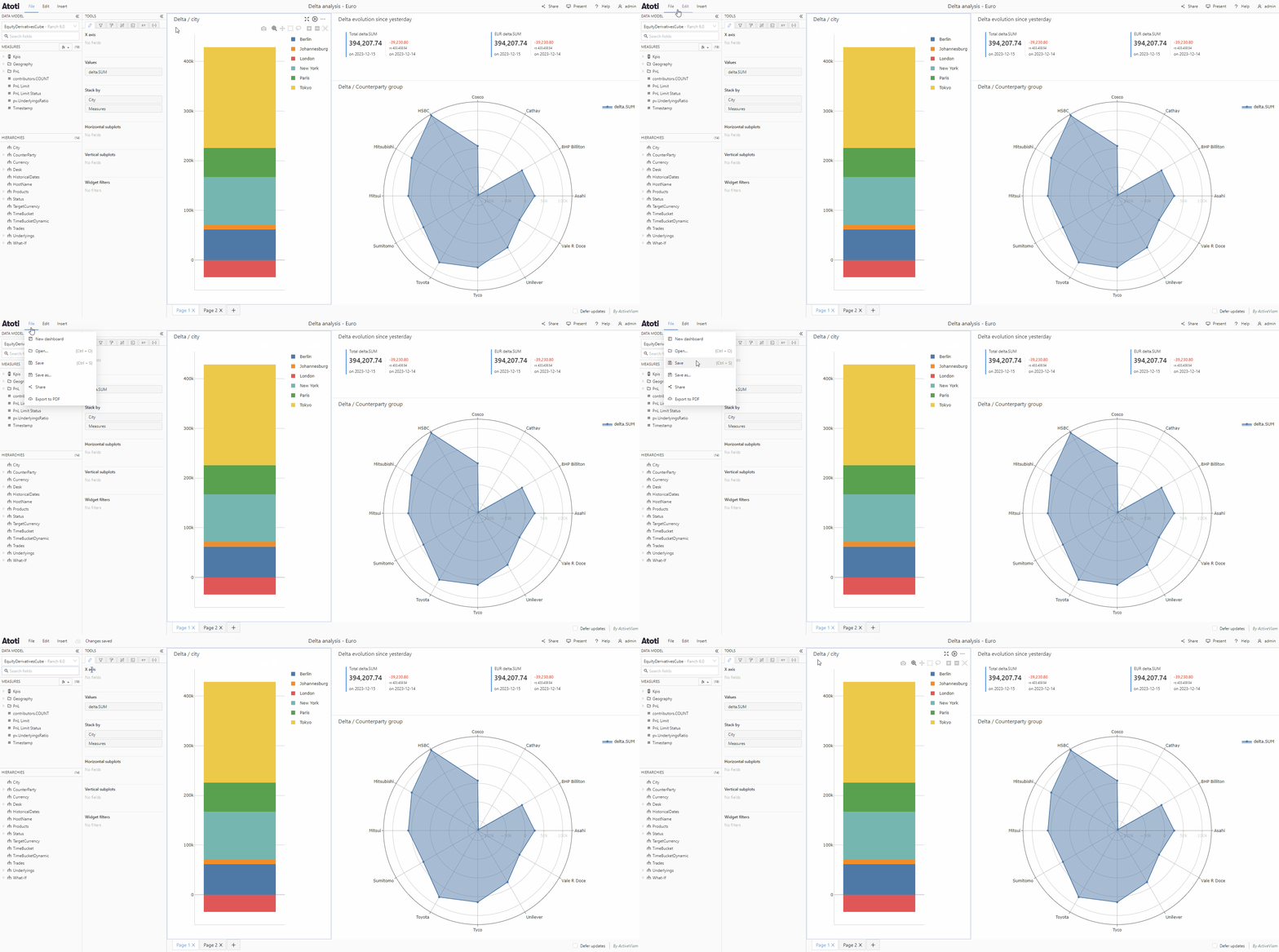
You can save a dashboard either by choosing **Save** from the **File** menu or by using the [keyboard shortcut](https://docs.activeviam.com/data-visualization/atoti-ui/5.2/user-guide/navigate-atoti-ui/keyboard-shortcuts.md) Ctrl/Cmd + S. In the top navigation bar you will briefly see a message telling you that your changes have been saved.
> [!TIP]
>
> When closing a dashboard, you may or may not see a popup reminding you to save
> any unsaved changes, this can be enabled or disabled via
> [settings](https://docs.activeviam.com/data-visualization/atoti-ui/5.2/developer-guide/customize-atoti-ui/user-settings.md).
## Rename a dashboard
To rename a dashboard:
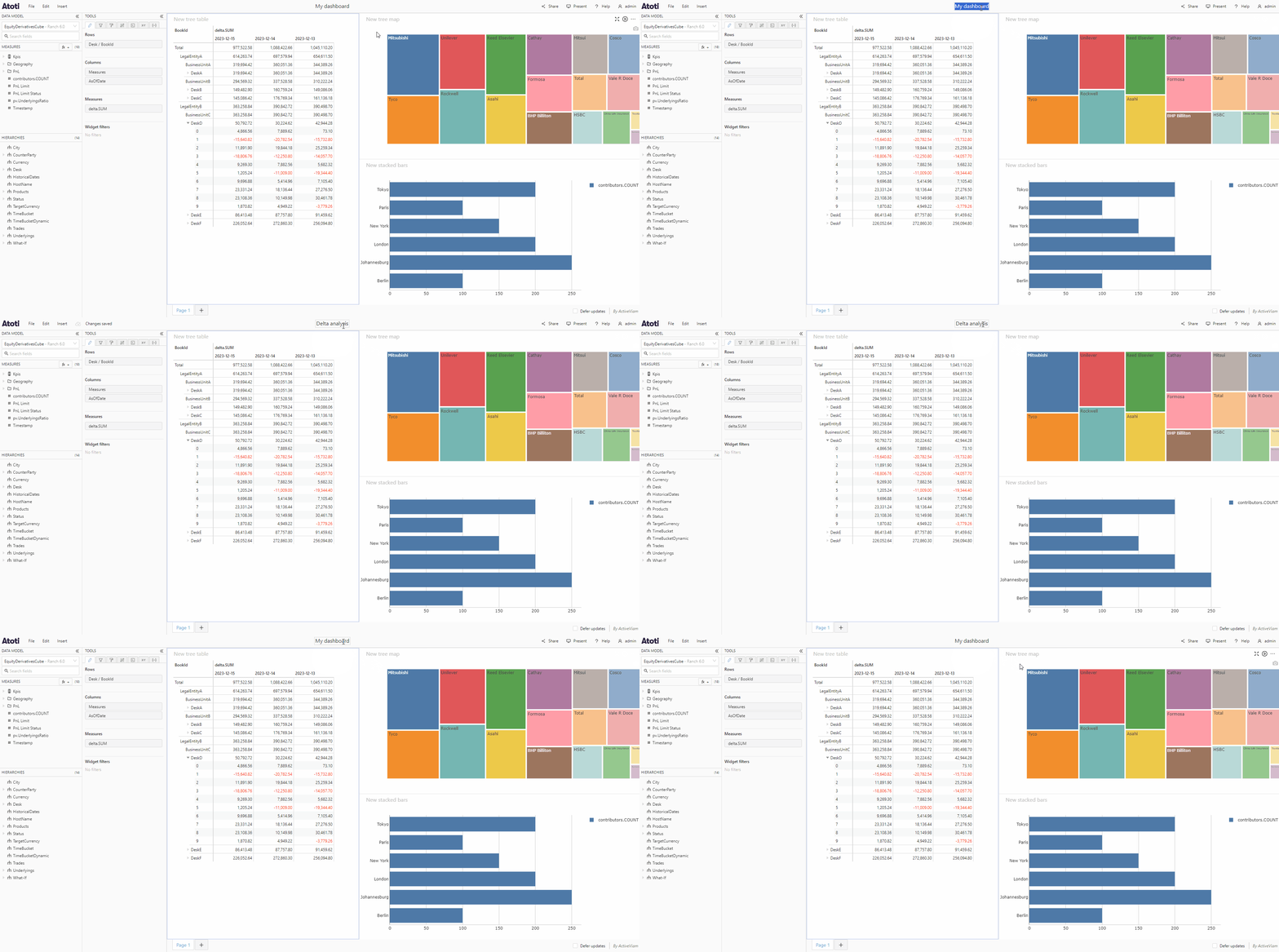
* Click on the dashboard's title in the top navigation bar. It will become a text input box.
* Enter the new title.
* Click outside of the input box or press Enter to save.
> [!NOTE]
>
> If you have any unsaved changes on your dashboard, these will also be saved when a dashboard is renamed, so make sure you want to keep any unsaved changes before renaming your dashboard.
>
> You can only rename a dashboard if you have edit permissions for that dashboard.
## Undo or Redo changes to a dashboard
Changes to dashboards are tracked and can be undone and redone in the order they occurred.
You can undo and redo in two ways:
1. Using [Keyboard shortcuts](https://docs.activeviam.com/data-visualization/atoti-ui/5.2/user-guide/navigate-atoti-ui/keyboard-shortcuts.md#dashboard-actions).
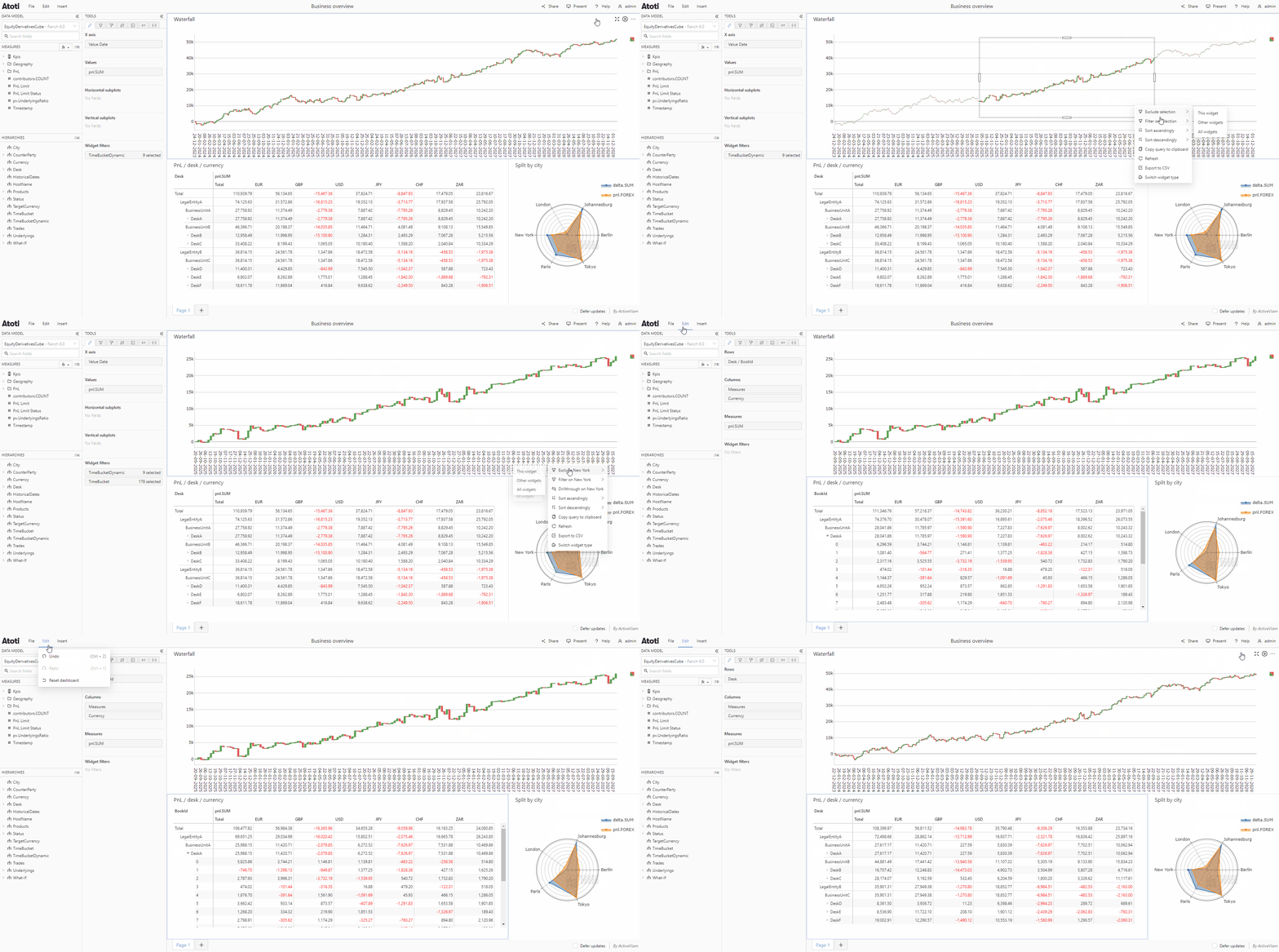
2. Using the **Undo** and **Redo** menu items from the **Edit** menu.
To clear all changes made to a dashboard since the last save, select **Reset dashboard** from the **Edit** menu.
> [!NOTE]
>
> Saving or leaving a dashboard will clear the available history of actions.
## Present mode
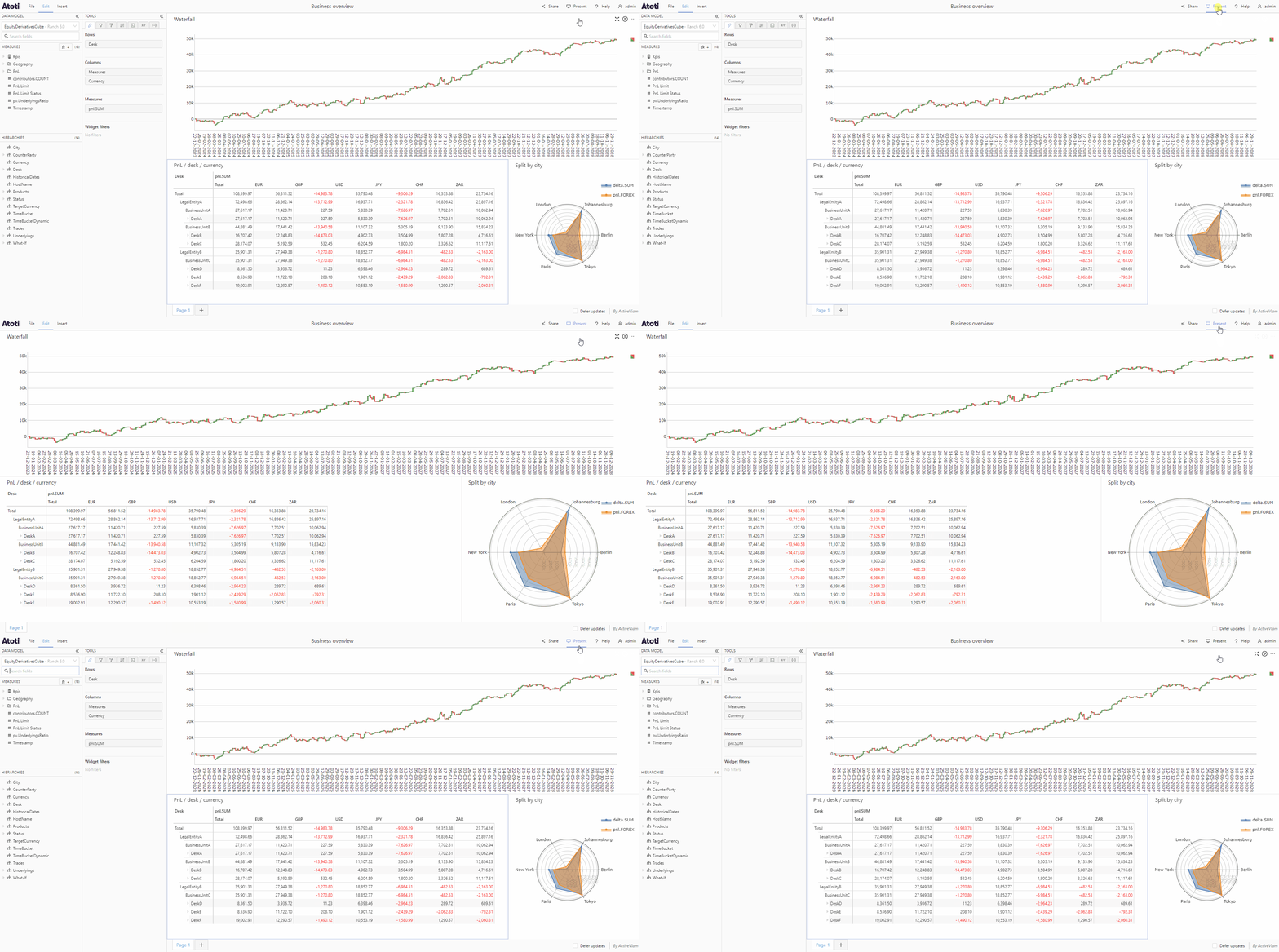
Dashboards can be viewed in **Present mode**, where the [data model](https://docs.activeviam.com/data-visualization/atoti-ui/5.2/user-guide/navigate-atoti-ui/data-model.md) and the tools panel are hidden, but you can still switch between [pages](#dashboard-pages), adjust the layout and perform actions on your widgets, such as [filtering](https://docs.activeviam.com/data-visualization/atoti-ui/5.2/user-guide/create-a-dashboard/filters/about-filters.md) or [sorting](https://docs.activeviam.com/data-visualization/atoti-ui/5.2/user-guide/analyze-data/sort-data.md).
Turn present mode on or off by clicking **Present** in the top navigation bar.